
AI Mix overview
AI Mix listens to a finished song you like (a reference) and to your own mix, then moves your mix toward it. It does this with ordinary, editable plug-ins, sends and gain moves, so everything it does can be adjusted by ear afterward.
AI Mix runs only when you ask
Section titled “AI Mix runs only when you ask”Nothing happens on its own. AI Mix does not run when you open, save or play a song, and it never re-runs to “keep the mix up to date”. It runs only when you press AI Mix (or Match on one target). Your song settings, preferences and earlier results are read at the start of the run you asked for, and nothing else.
Opening a song, saving it, and your own edits leave the mix exactly as you saved it.
Opening the AI Mix screen
Section titled “Opening the AI Mix screen”AI Mix has its own screen that covers the area under the control bar. Open or close it with any of these:
- The AI Mix icon in the header
- View › AI Mix
- Mix › AI Mix
- ⇧⌘M
Press ‹ Tracks or Esc to go back to your tracks. A run that is going keeps going; a badge in the header shows its progress and takes you back when you click it.
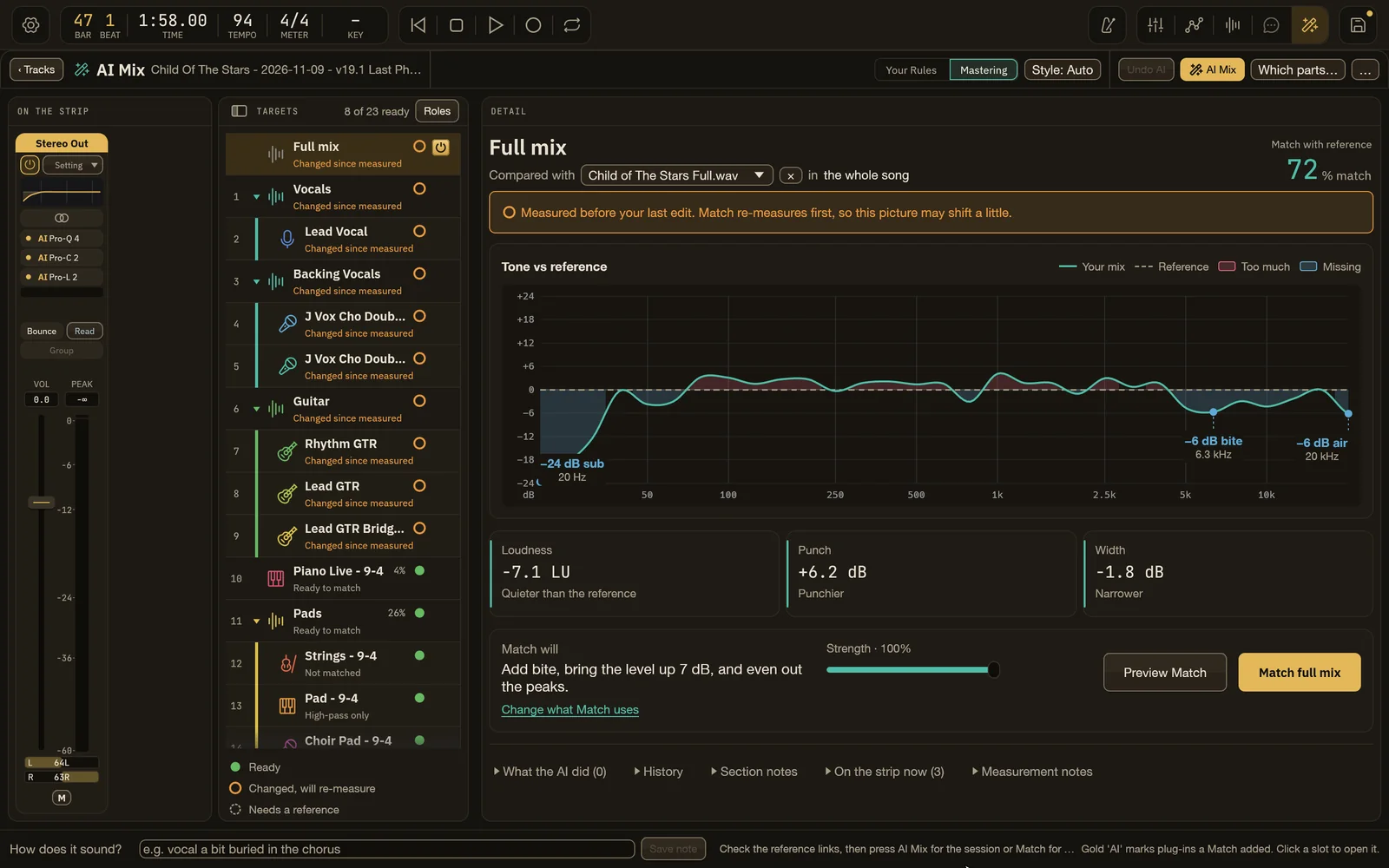
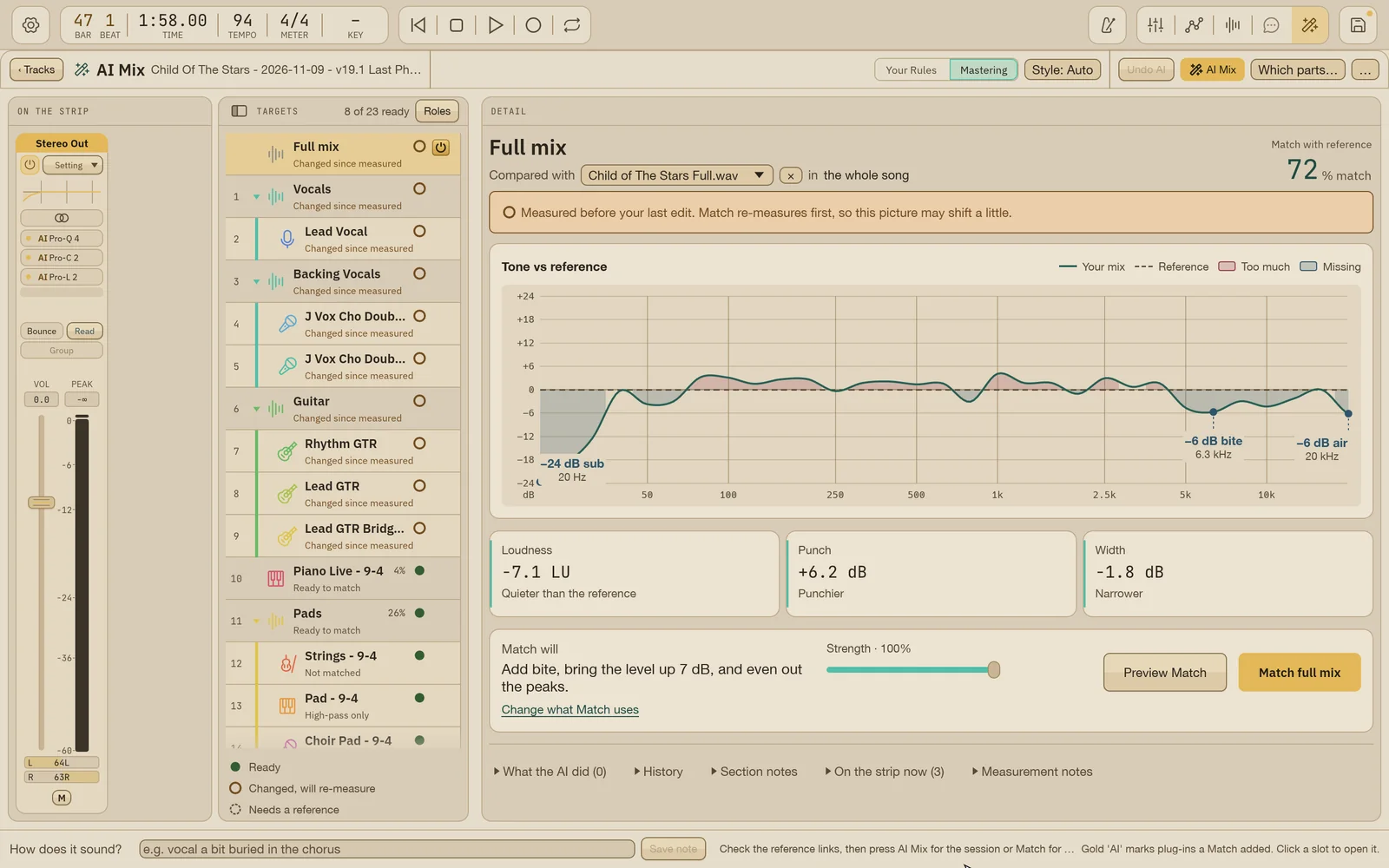
The parts of the screen
Section titled “The parts of the screen”- Top bar. ‹ Tracks, the song’s name, the Method switch (Your Rules or Mastering, see Mix methods), Undo AI, the AI Mix button and the Which parts… menu beside it. The … menu holds Balance stacks, Stack by stems, Start over…, Help and Quick Help.
- Targets (left). The full mix on top, then your tracks and Summing Stacks in the same order and nesting as the Tracks area. A target is anything AI Mix can match to a reference. The power button at the end of a row switches that target on or off for AI Mix.
- References drawer. Your reference files: finished songs and stems such as Drums or Lead Vocals. Add them with Add files… or by dropping audio files on the drawer.
- Detail (right). How far the selected target is from its reference, and what Match will do about it. See Matching a reference.
- Footer. A How does it sound? field for a one-line note about the mix (saved with the song’s history), and the status line with the result of the last action. Hover the status line to read all of it.
Turn on … › Quick Help to get a strip that explains whatever control, row or chart you point at.
Running AI Mix
Section titled “Running AI Mix”- Add reference files in the References drawer.
- Link each target to a reference. Targets with no manual choice are linked automatically by name; you can change any link from the target’s reference menu.
- Stop playback and recording.
- Press AI Mix.
One run does the whole job, in this order:
- Analyzes each linked, powered-on target that needs it. Measurements that are still current are reused.
- Matches each target to its own reference: tracks first, then Summing Stacks from the inside out, the full mix last. Each target uses its own modules, plug-in choices and Match strength.
- Balances the Summing Stacks against each other the way their reference stems sit (when at least two stacks have a reference).
- Builds space: shared reverb and delay returns with role-based sends.
- Re-checks every processed target on the final result, so the reports describe what was actually applied.
- Applies everything at once, as a single undo step.
While it works, an AI Mix is working panel shows the phase, the current target, a progress bar, the elapsed time and, once a target has finished, an estimate of the time left. Press Cancel to stop; nothing is changed.
To work on one target at a time, select it and press its Match button instead. See Matching a reference.
What AI Mix changes
Section titled “What AI Mix changes”AI Mix adds and sets things you can see and edit:
- Plug-ins on the target’s strip: EQ, compressor, saturation, de-esser and, on the full mix, a limiter. They are your installed third-party plug-ins, each labeled as an AI plug-in.
- AI-owned Gain after a Summing Stack’s processing, for the Balance step.
- AI reverb and delay returns (for example AI Vocal Plate, AI Drum Room, AI Hall, AI Lead Delay) and the sends that feed them, sometimes with send automation per section.
- Pans on eligible tracks, when Set pans is on.
What it leaves alone:
- Your faders. Match never moves a fader. Balance uses its own Gain, not your fader.
- Plug-ins you added. They stay where they are with their settings and automation.
- Your audio. Recordings and regions are never edited.
- Routing and membership. Logic Groups are not converted, and tracks are not moved between stacks (except by Stack by stems, which you start yourself).
If a plug-in a module needs is not installed, AI Mix skips that module and says so. It never quietly swaps in a different effect.
Undo and history
Section titled “Undo and history”- Undo AI on the top bar takes back the last AI Mix run (or Match) in one step. It works only while that run is the most recent edit; if you have edited since, undo those edits first, or use Window › Undo History.
- Edit › Undo (⌘Z) also works: the whole run is one undo step.
- Each move made by the AI fine-tune has its own Undo this move button. See Quick re-runs and fine-tunes.
- … › Start over… clears every reference link, every target’s options and all analysis in one undo step. You choose whether the reference files and the plug-ins AI Mix added go too.
Every run is also recorded with the song: what was read, what changed on each track, and when. Open the History section in the Detail panel, or Window › Song History for the whole song across its versions. History is information only; reading it changes nothing. See Reports and Song History.
Where to go next
Section titled “Where to go next”- Mix methods: Your Rules or Mastering, and the Style setting.
- Matching a reference: references, Match, Preview Match and Reference A/B.
- Quick re-runs and fine-tunes: only new or changed parts, and small changes after a run.
- Reports and Song History: reading what a run did.
- Song settings and preferences: how a song departs from the defaults.
Logic Pro is a trademark of Apple Inc., registered in the U.S. and other countries. Wisdom Pro is not affiliated with or endorsed by Apple.
Built so far:1,292 hours24.1 billion tokensabout $8,700 at API pricesupdated Nov 21, 2026 What these numbers mean