
Bouncing and Delivery
When the mix is ready, bounce it to an audio file. Wisdom Pro renders offline, saves the file in the song’s own Bounces folder, and never touches your project or source audio while it does.
Bouncing a mix
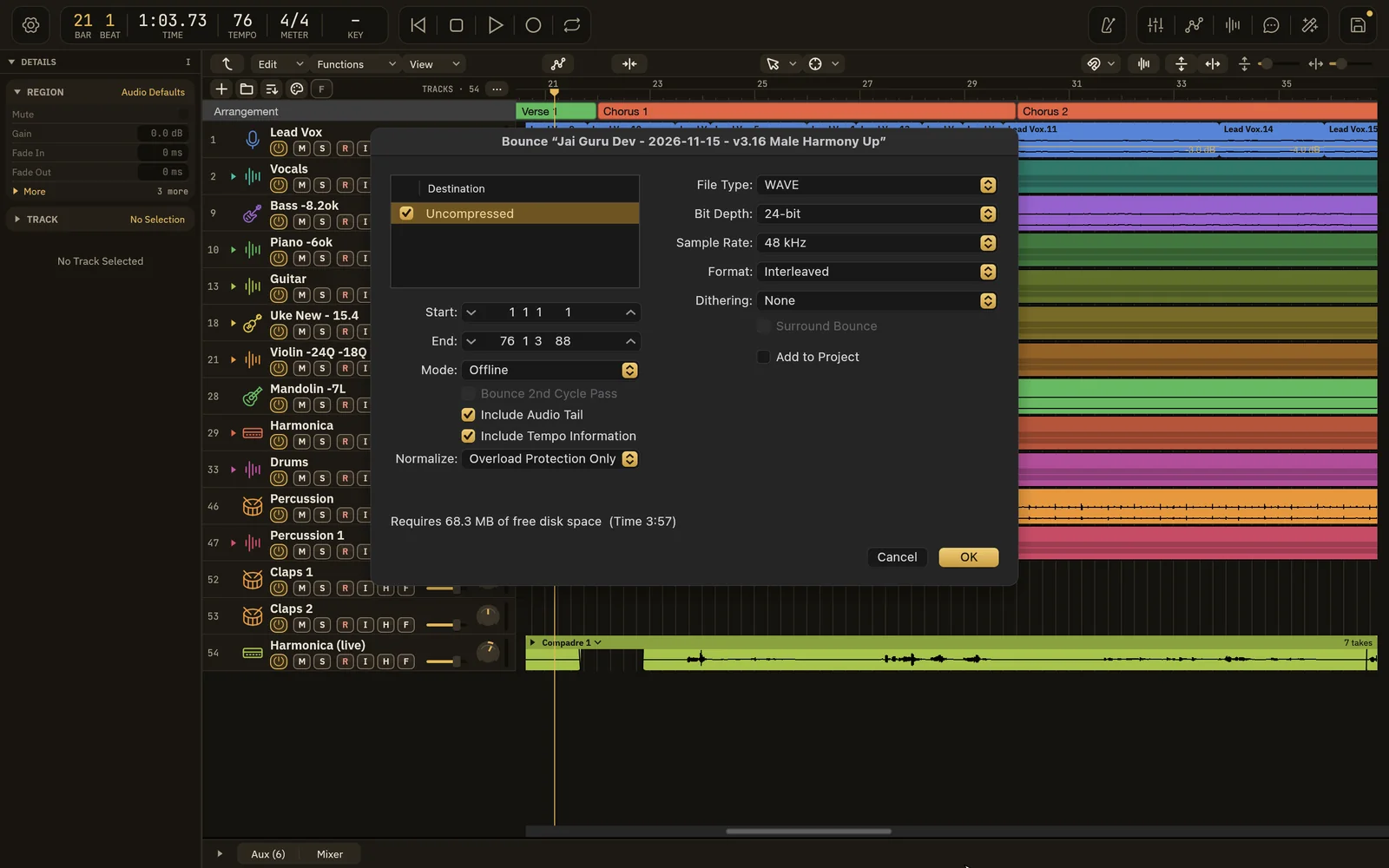
Section titled “Bouncing a mix”- Save the project. Bouncing needs a saved project so it knows where the song’s Bounces folder is.
- Choose File › Bounce… (⌘B), or click Bounce at the bottom of the main output strip in the mixer.
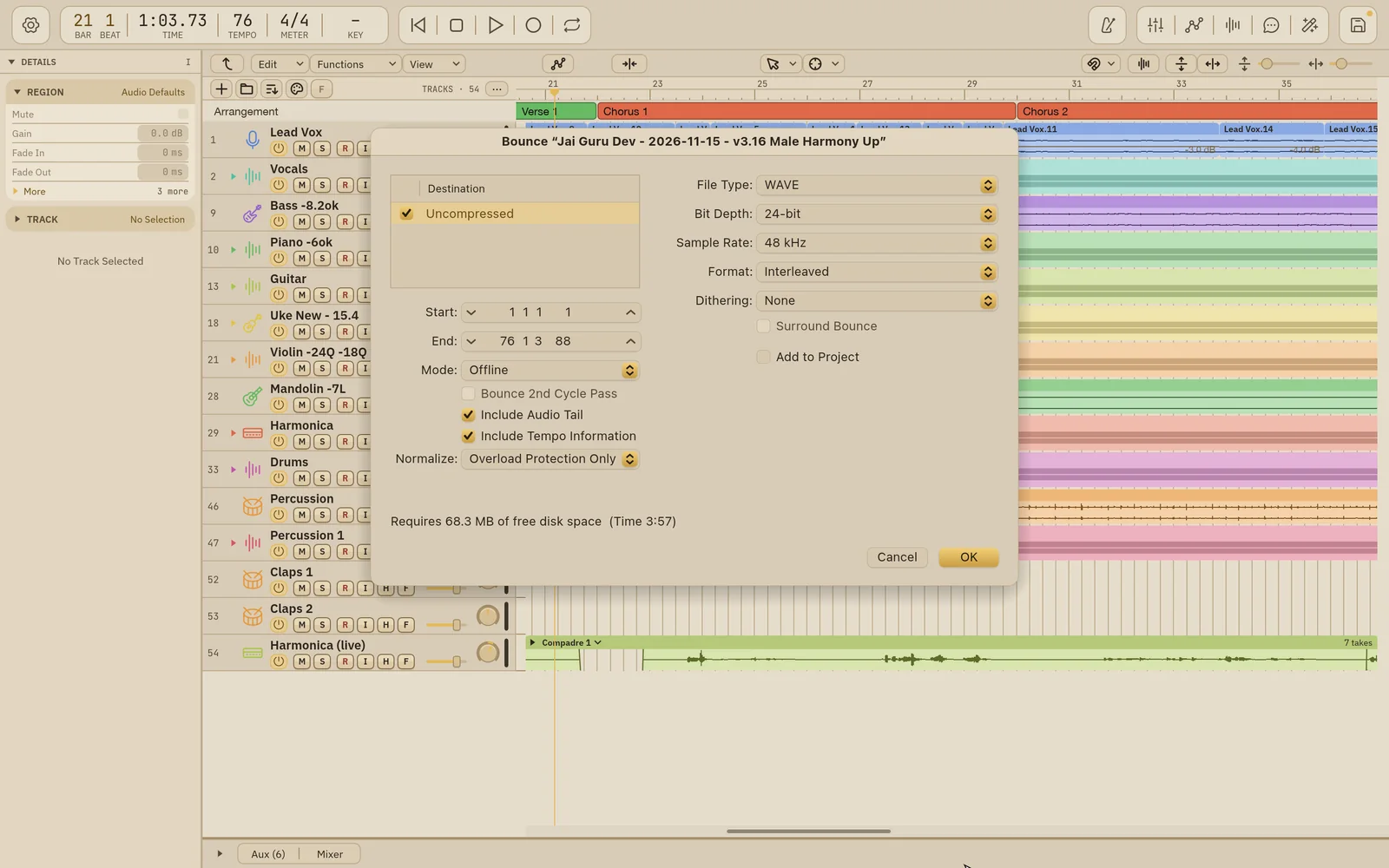
- Check the settings in the Bounce window (below) and click OK.
- Confirm the file name and location in the save dialog.
A Bounce progress window shows the render. You can Cancel Bounce at any time; a canceled bounce leaves no partial file behind. When it’s done, click Reveal in Finder to see the file, Reveal Bounces in Finder to open the folder, or Done.
Bounce settings
Section titled “Bounce settings”Start and End set what gets bounced, as bar and beat positions. The window opens on:
- the cycle range, if cycle is on; otherwise
- the selected regions or selection, if there is one; otherwise
- the whole project, from the start to the project end.
You can type different positions. End must be after Start.
Left side
Section titled “Left side”| Setting | What it does |
|---|---|
| Mode | Offline. Realtime bouncing isn’t available. |
| Include Audio Tail | Keeps rendering after End until reverb, delay and release tails die away (up to 30 seconds). On by default. |
| Include Tempo Information | Writes the tempo and meter at Start into the file. On by default. |
| Normalize | Off, Overload Protection Only (the default) or On. |
Right side (Uncompressed)
Section titled “Right side (Uncompressed)”| Setting | Choices |
|---|---|
| File Type | WAVE (default) or AIFF |
| Bit Depth | 16-bit, 24-bit (default) or 32-bit Float |
| Sample Rate | 44.1, 48 (default), 88.2, 96, 176.4 or 192 kHz |
| Format | Interleaved (one stereo file) or Split (separate left and right files; needs a stereo main output) |
| Dithering | None (default) or TPDF |
Add to Project adds the finished file back into the project as an inactive, muted comparison track, so you can A/B the bounce against the live mix. It’s one undo step.
The window also shows how much free disk space the bounce needs and how long it is.
Where bounces are saved
Section titled “Where bounces are saved”Each song keeps its bounces in its own Bounces folder, inside the song’s project. The file is named after the project (plus the alternative’s name, if you have one open). If that name is taken, Wisdom Pro adds a number, such as My Song 2.wav, rather than overwriting. If you do pick an existing file in the save dialog, you’re asked to Replace it first.
Wisdom Pro remembers the folder you last bounced to for each project. Choose Reveal Bounces in Finder any time to open it.
For a stereo WAVE bounce into the song’s Bounces folder, Wisdom Pro also writes a short text note in Bounces/Notes describing what changed in that version.
If a plug-in produced invalid audio during the render, it’s switched off for the rest of the bounce and the finished message tells you which one.
Loudness and the master
Section titled “Loudness and the master”You don’t need to set a loudness target by hand. When you run AI Mix, it sets up the master for you:
- With the default Mastering Method, the master’s limiter goes on early and the master ends up at most about −10 LUFS integrated, with a true-peak ceiling of −1 dBTP. A final check backs the limiter off if the master shows signs of distortion or over-compression.
- The Dense and Sparse style choices aim for a louder or a more dynamic master.
See AI Mix methods for the details and how to choose.
Translation checks: earbuds, phones, headphones, car
Section titled “Translation checks: earbuds, phones, headphones, car”At the end of every AI Mix run, Wisdom Pro checks how the finished mix will hold up on everyday playback. It renders copies of the mix and listens for problems on:
- Earbuds: is the lead vocal sitting on top of the music, can you still hear the kick, is the bass too loud against it?
- Phone speakers: does the vocal reverb get heavy?
- Headphones: does the kick’s low note hang on too long?
- Car and quiet passages.
- Streaming loudness: how much a streaming service’s loudness setting would limit the master.
Warnings come in plain words, such as “On earbuds the kick may be hard to hear”, and appear in the AI Mix status and report. They’re advice only: they never change your mix or stop you bouncing.
Built so far:1,292 hours24.1 billion tokensabout $8,700 at API pricesupdated Nov 21, 2026 What these numbers mean